I Wanted Time Machine for Linux, So I Built a Web UI for Btrfs
Contents
This article is also available in 日本語.
I built btrfs-timeline, a tool that lets you browse and restore previous versions of your files from btrfs snapshots, right from your browser. The goal is to make “what did this file look like last month?” as easy to answer as it is with Time Machine on a Mac.
Why I built it
The snapshots are there, but getting a file back is hard
- I run a few self-built servers, and all of them use btrfs RAID
- btrfs is very flexible about RAID layouts and makes good use of disks of different sizes, so I have grown quite fond of it
- I also take automatic snapshots with snapper and the like, so every previous version of every file is already sitting on my disks
- But when I actually need to recover a single file I deleted or overwrote by mistake, I have to:
- know where the snapshots live,
- guess which snapshot is old enough,
- and compare files by hand on the command line.
- It works, but honestly, it is an expert-only chore
- And recovering files like this is the whole reason for taking snapshots in the first place
I looked for existing tools, but…
Before writing anything, I surveyed what was already out there.
| Tool | What it does | Why it did not fit |
|---|---|---|
| httm | Excellent interactive file history for ZFS/btrfs | CLI/TUI only |
| Timeshift | System-wide snapshots and restore | Built for rolling back the whole system, not for walking back through one file |
| Btrfs Assistant, Snapper GUI | Snapshot management | Desktop apps; not per-file history |
Samba vfs_shadow_copy2 | “Previous Versions” in Windows Explorer | Requires a Windows client |
| Rockstor, OpenMediaVault | NAS web UIs with btrfs support | NAS-only distributions; rollback is per share, not per file |
| Cockpit | Creating btrfs filesystems and subvolumes | No snapshot browsing |
- httm comes closest in features and is very well made, but it lives in the terminal
- Searching GitHub for btrfs web UIs turned up mostly hobby experiments and projects that had not been updated in years
- In short, nothing let me open a browser, point at a path, and walk back through time — so I decided to build it
What it does
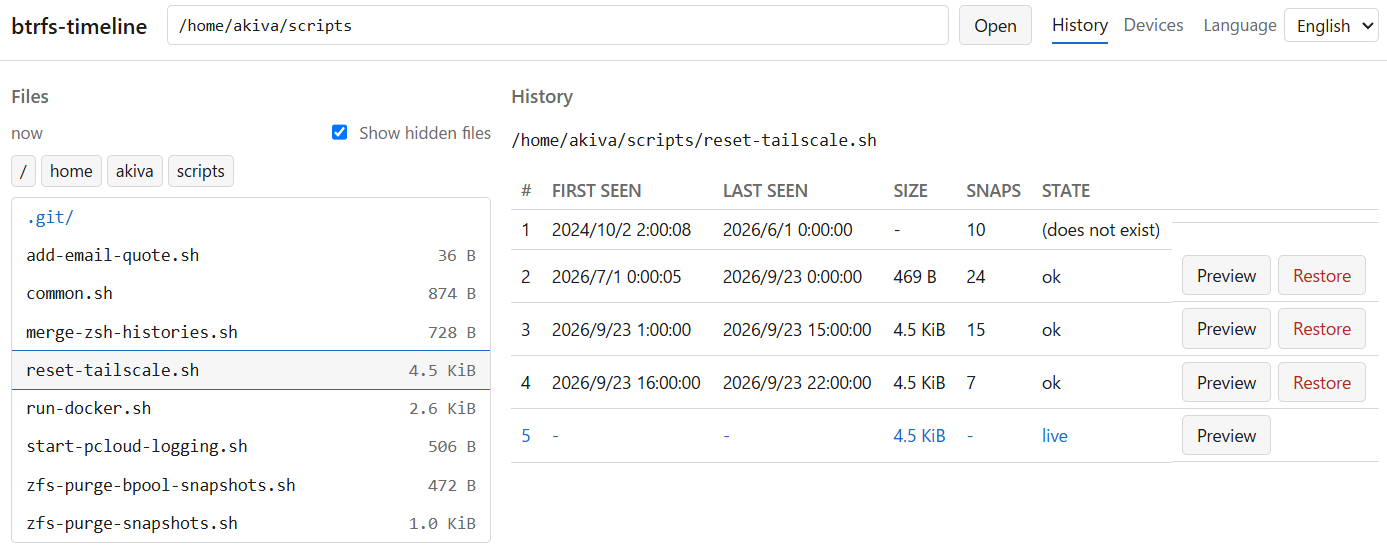
- It finds your btrfs snapshots and lists the previous versions of any file you point it at
- You can preview each version, diff it against the current file, and restore it with one click
- There are three ways to use it:
- CLI (
btrfs-timeline historyand friends) - Standalone web UI (started with
btrfs-timeline serve) - Cockpit module (if you already use Cockpit, the same screen opens inside it)
- CLI (
- It supports the snapper layout (
.snapshots/<number>/snapshot) as well as the flat.snapshots/<name>layout used by btrbk, Timeshift and hand-rolled setups
Trying it out
Installation
$ pipx install 'btrfs-timeline[web]'   # with the web UI
$ pipx install btrfs-timeline          # CLI only, no dependencies
- Requires Python 3.9+ and Linux
- Browsing history does not even need
btrfs-progs
Viewing history from the CLI
$ btrfs-timeline history ~/.gitconfig
/home/user/.gitconfig
  # FIRST SEEN           LAST SEEN                  SIZE   SNAPS STATE
  1 2024-10-02 02:00:08  2025-01-01 00:00:00           -       3 (does not exist)
  2 2025-12-01 00:00:08  2026-03-01 00:00:00       268 B       4 ok
  3 2026-04-01 00:00:00  2026-09-23 01:00:00       297 B      28 ok
  4 -                    -                         297 B       - live
- Thirty-five snapshots collapse into three meaningful versions, plus the stretch before the file existed — four rows in total
- This is the heart of the tool; more on it below
Using the web UI
$ btrfs-timeline serve                       # http://127.0.0.1:8088/
$ btrfs-timeline serve --root ~/Documents    # only expose this directory
$ btrfs-timeline serve --read-only           # browsing only; restore disabled
- Browse directories on the left; click a file and its versions appear on the right
- Click a directory and pick a version, and the list on the left switches to what the directory contained at that point in time
- Files deleted since then show up there with a strikethrough. They no longer exist on the live filesystem, so this is how you find a file you have lost
- The preview pane doubles as a diff view
Restoring
$ btrfs-timeline restore ~/notes.md --index 2    # restore a given version
$ btrfs-timeline restore ~/notes.md --dry-run    # just show what would happen
- In the web UI it is one click — but it always shows you where it will write and what it will write before asking for confirmation
Things I cared about
No root needed to browse history
- The obvious way to find snapshots is
btrfs subvolume list, but that requires root - The files inside snapshots, on the other hand, are readable with ordinary permissions
- So the tool discovers snapshots using only
/proc/self/mountinfoand a directory walk- As a result, browsing history requires no root, and the web server never has to run as root
Identical versions are merged
- btrfs is copy-on-write, so an unchanged file appears in every single snapshot
- On my machine, one file showed up in 35 snapshots, and all of them were the same version
- A list of 35 identical rows tells you nothing, so versions with the same mtime and size are merged into one
- Periods when the file did not exist are kept as their own entries
- Otherwise, a file that was deleted and later recreated would look as if its history had never been interrupted
Restoring never destroys the current file
- The worst accident a history tool can cause is wrecking the current contents while trying to bring back an old version
- So by default nothing is overwritten. The restored file lands next to the original under a name like
notes.20260401T000008.md- Overwriting requires an explicit
--in-place, and even then the current contents are saved aside first
- Overwriting requires an explicit
- Restores use a reflink (btrfs extent sharing) instead of a copy, so they finish instantly regardless of file size and take no extra space
The web UI is not exposed by accident
- By default it only listens on loopback (
127.0.0.1) - On any other address it refuses to start unless you pass
--auth USER:PASSWORD- Anyone who can reach it could read your files and even overwrite them, so this should never happen by accident
Cockpit gets the very same screen
If you already use Cockpit, you can open the same screen inside it
$ btrfs-timeline cockpit installA Cockpit module is just static files; it cannot have a server side of its own
- So the core of the tool is a CLI that answers with
--json, and both the web UI and the Cockpit module are built on that same output - The screen code is shared, and the only file that differs is
transport.js, which fetches the data (HTTP for the web UI,cockpit.spawncalling the CLI for Cockpit)
- So the core of the tool is a CLI that answers with
Bonus: dashboard and maintenance
- Beyond file history, there is a device dashboard for NAS-style setups
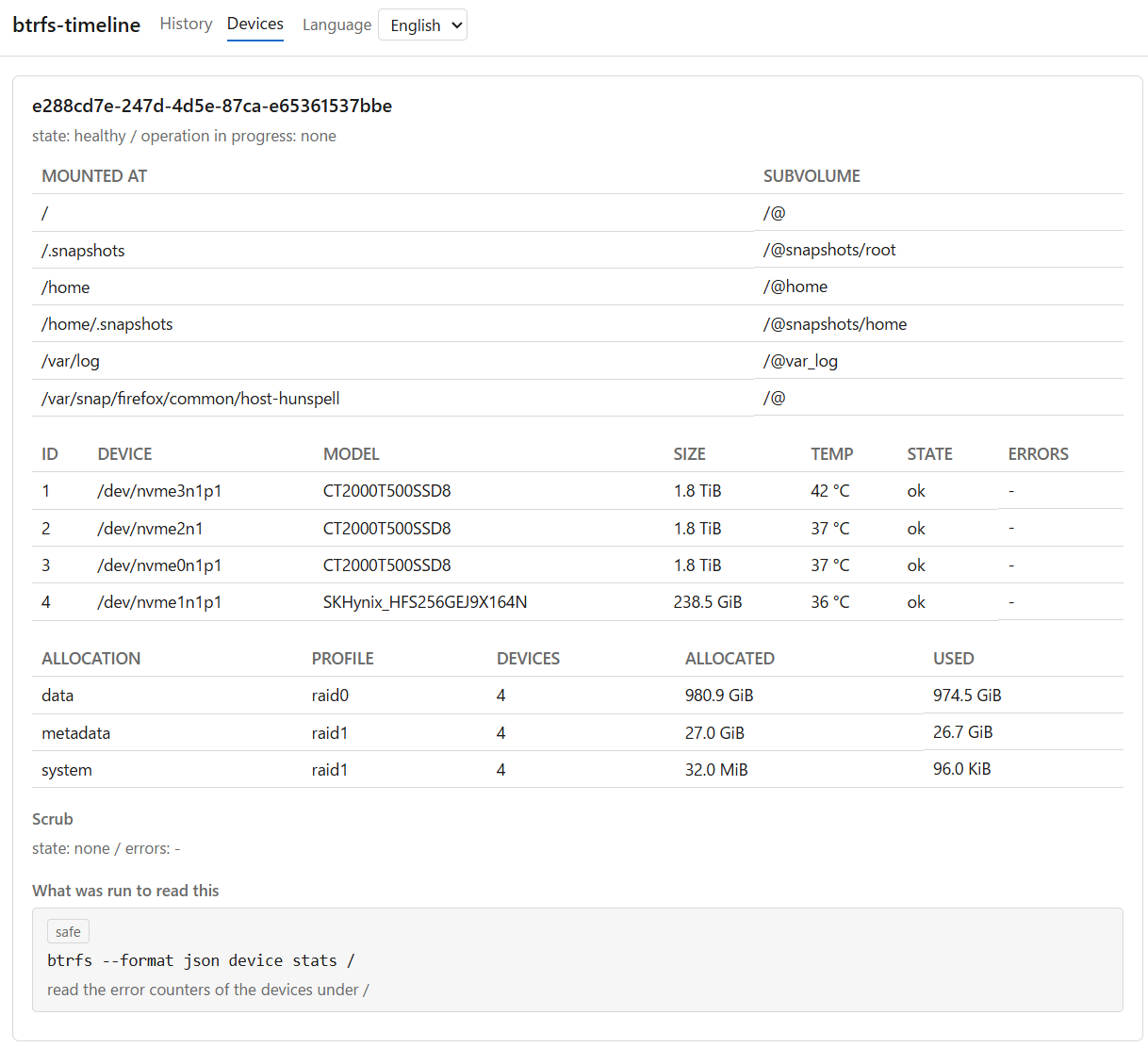
- It shows each filesystem’s devices, RAID profiles, per-device error counters, device models and temperatures (again, no root needed)
- Scrub, balance, and adding, removing or replacing devices are available from the CLI
- Every operation declares its risk level (safe / changes state / dangerous) and shows the exact command before asking for confirmation
- Operations that can lose data if they go wrong, such as replacing a device, cannot run until you type the target device’s name (the same idea as typing a repository’s name to delete it on GitHub)
Wrapping up
- If you take automatic btrfs snapshots, the old versions are already on your disks. What was missing was an easy way to walk back through them
- btrfs-timeline lets you walk back through a file’s history from a browser (or the CLI, or Cockpit) and restore it without touching the current file
- Browsing history needs no root
It is still in early development, but if you use btrfs, please give it a try. Bug reports and feature requests are welcome on GitHub Issues.