
Modern Flyouts Stopped Working on Windows 11, So I Built FlexFlyout
This article is also available in 日本語.
Contents
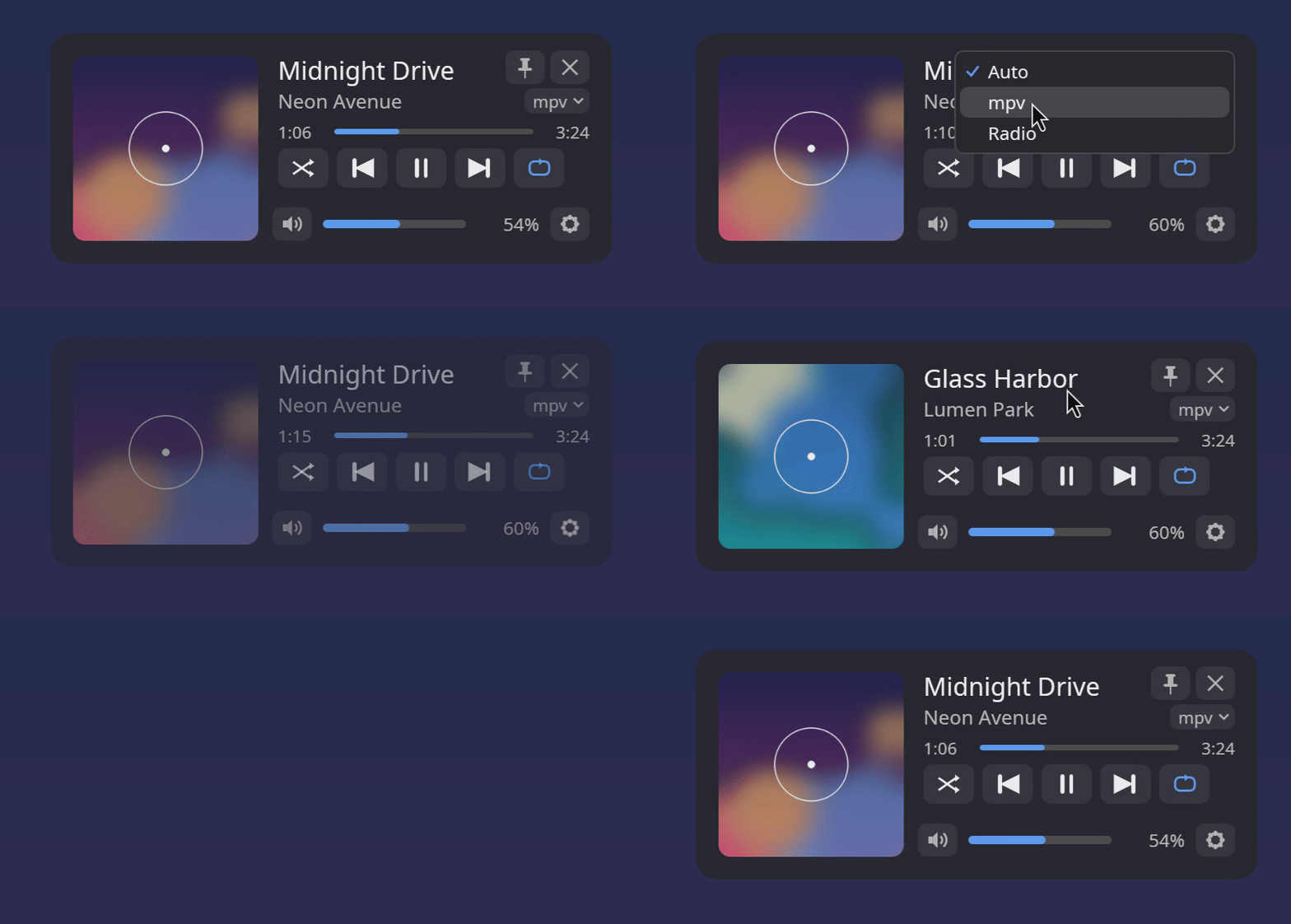
I built FlexFlyout, a flyout that shows what’s playing (cover art, title and artist) together with playback controls and the volume, whenever you change the volume or a new track starts. It runs on Windows 11 and Linux (KDE Plasma), and its main point is that you can fine-tune its size, position, monitor, display time and opacity.
Why I built it
- On Windows 10, I loved Modern Flyouts
- Press a volume key, and the song playing in Spotify or YouTube appears in a corner with its cover art and controls. I liked both its look and its size
- After I moved to Windows 11, it stopped working properly. There turned out to be good reasons:
- Looking for a replacement, I tried several flyout apps from the Microsoft Store. The only one that ran properly and did its job was FluentFlyout
- FluentFlyout is a good, actively developed app, but for the way I use it, it fell a little short:
- There is no setting for its size (it has been requested in #33). On a large monitor it looks quite small
- Its position is one of six places: top or bottom, left, center or right
- FluentFlyout is a good, actively developed app, but for the way I use it, it fell a little short:
- Everyone’s monitors differ in number and size, so being able to decide “which monitor, where on it, and how big” matters most to me
- At my desk, I have two 34-inch ultrawide (3440×1440) monitors stacked vertically. On screens that size, flyouts look small, and which of the two they appear on matters
- I couldn’t find anything else that lets you adjust the size, position, monitor, display time and opacity, and shows the track when the volume changes. On Linux (KDE, GNOME), I couldn’t find anything that shows the track on a volume change at all
- So I wrote down what I wanted as requirements and built it myself, with an AI coding assistant (Claude Code)
What it does
- It appears, and disappears after a while:
- When you press a volume or media key, or the volume changes
- When a new track starts (a small panel with the cover art, title and artist; click it for the whole flyout)
- What it shows:
- Cover art, title and artist
- A seek bar; previous, play/pause and next; shuffle and repeat
- A volume bar (click, drag or scroll to change it) and mute
- What you can adjust:
- Monitor: the primary one, the one under the mouse pointer, or one by number
- Position: nine anchor points plus pixel offsets
- Size (scale), display time, opacity, and a slide-in animation
- Look: light or dark (or follow the system), accent color, corner roundness, and which parts to show (drop the cover art or the seek bar, and it gets smaller)
- And a few quietly handy things:
- Pin it to keep it on screen, and drag it anywhere (it can remember that place for next time)
- Choose the player to follow: set it to Spotify only, and watching a video in the browser won’t take over the flyout
- Keep it off full-screen games: it only holds back on the monitor where a full-screen app is running, so with two monitors it can still show on the other one
- The Windows volume indicator can be kept, with the flyout placed clear of it, or hidden (the same goes for KDE Plasma’s)
- Track information comes from SMTC on Windows (Spotify, browsers, Media Player and more support it) and MPRIS on Linux
Trying it
Installing (Windows 11)
- The easiest way is Scoop. It also adds a Start menu entry
> scoop bucket add akivajp https://github.com/akivajp/scoop-bucket
> scoop install akivajp/flexflyout- Or unzip the zip from Releases and run
flexflyout.exe- It isn’t code-signed yet, so SmartScreen may warn you the first time (“More info” → “Run anyway”)
- It lives in the system tray. From its menu you can open the settings window and turn on “Start with Windows”
- Once a day it checks for a new version and lets you know if there is one
Installing (Linux)
- It runs on Wayland desktops with layer-shell (KDE Plasma, sway, Hyprland and others). GNOME and X11 are not supported yet
- On Arch-based distributions (CachyOS and others), you can install it from the PKGBUILD in the repository
$ git clone https://github.com/akivajp/flexflyout.git
$ cd flexflyout/packaging/aur/flexflyout-bin && makepkg -si- On other distributions (glibc 2.35 or later), put
flexflyoutfrom the tar.gz on Releases somewhere on yourPATH
Setting it up
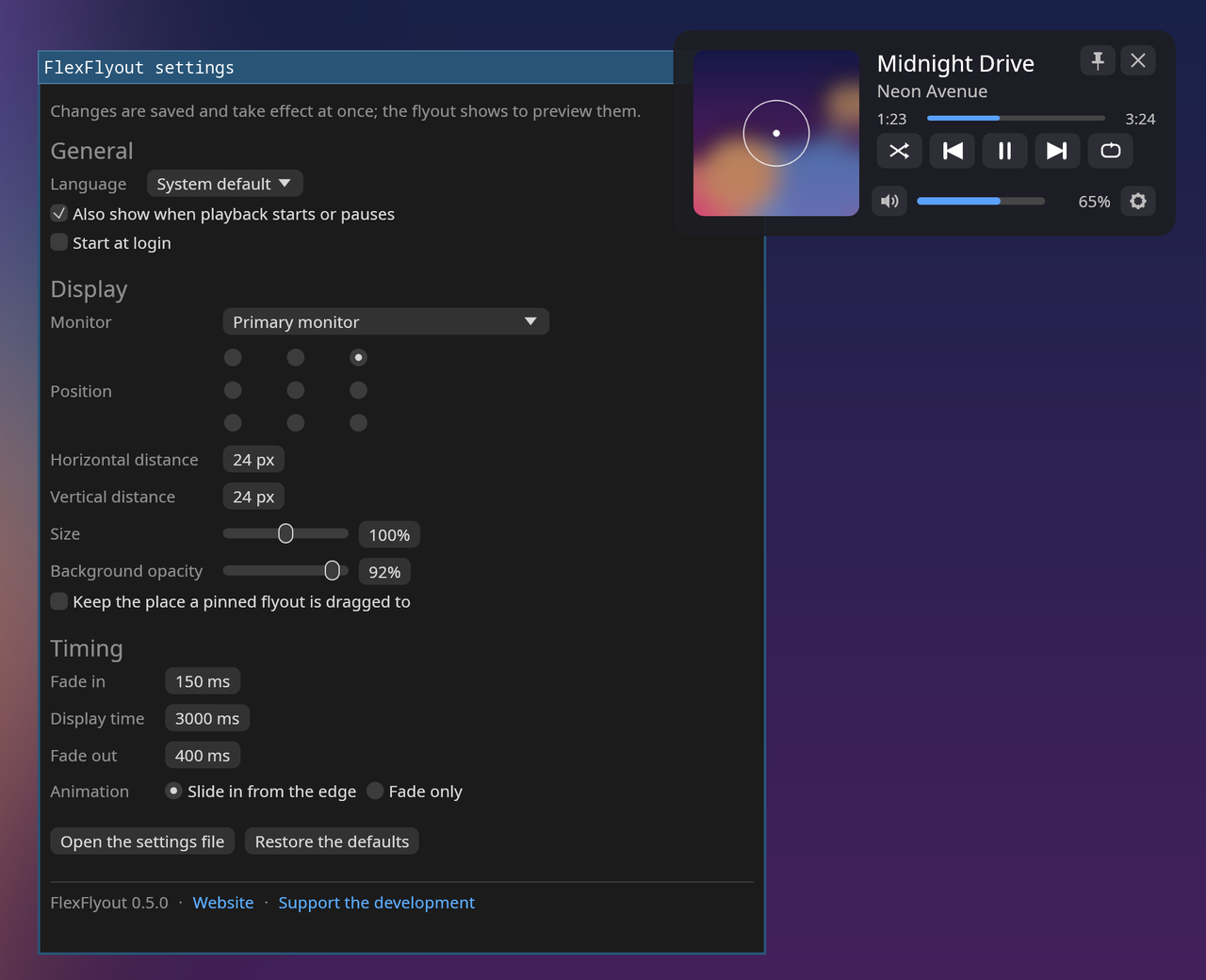
- When you change something in the settings window, the flyout shows up as a preview, so you can line up its position while you watch
- Hold the − or + next to a number to keep it changing (for fine positioning)
- Underneath is a TOML file, which you can also edit by hand (changes apply within a second of saving)
%APPDATA%\flexflyout\config.tomlon Windows,~/.config/flexflyout/config.tomlon Linux
[display]
monitor = "primary"    # or "cursor" (the one under the mouse), or 2 (a number)
anchor = "top-right"   # nine places: top-left, top, top-right, left, center, ...
offset_x = 24          # offset from the anchor, in pixels
offset_y = 24
scale = 1.5            # 1.5 times the size
opacity = 0.92

[timing]
hold_ms = 3000         # how long it stays
How I checked it while building it
- I left most of the implementation to Claude Code. My part was deciding the requirements, making the calls (which OS to support first, whether to connect to the network, when to release) and testing on real hardware
- When an AI writes a GUI app, things tend to stop at “it’s written, but nobody knows if it works”. So first I set up an environment where Claude Code could run the app and look at the screen itself
- Windows: it cross-builds on a Linux server (cargo-xwin) and runs the app in a Windows 11 virtual machine on the same server. Scripts send key presses and clicks and take screenshots, and Claude Code looks at the screenshots to judge
- Linux: a headless sway (Wayland) in Docker, with screenshots. Clicks and drags come from a small tool that sends a virtual pointer
- With that, the loop of “fix → build → run in the VM → look at the screen → fix again” went on without me
- Even so, some things can’t be seen in a VM or a container (several monitors, special keys on my own keyboard, Bluetooth headphones and so on)
- Indeed, two bugs that never showed in sway in the container appeared on real KDE: “changing the scale crashes it” and “centered, its parts overlap”. Both were places where KWin and sway interpret things differently
- I found them on my machine and reported them, and Claude Code reproduced them in sway and fixed them. I think that split worked well
What was hard
- I plan to write up the details separately. Just a taste:
- Windows 11 has no official way to hide its volume indicator: it’s a single window inside Explorer, shared with the brightness and airplane mode indicators. Hiding it from outside hides all of them, and Windows updates change how the window is built (on 26H2 it had changed again). That is also why Modern Flyouts broke, so FlexFlyout by default keeps the indicator and places itself clear of it
- A transparent, always-on-top window that doesn’t steal focus, with egui: transparency takes three settings, winit rewrites the window’s extended styles behind your back so that it starts stealing focus, and so on
- On Wayland (KDE), a normal window can’t stay on top: FlexFlyout draws on a layer-shell surface instead. GNOME doesn’t support layer-shell, so the GNOME version will be a separate Shell extension
Help wanted
So far it works well on my own machines (FlexFlyout v0.9.0):
- A Windows 11 desktop PC (two 34-inch ultrawide monitors stacked vertically, including choosing which one it shows on)
- A ThinkPad running CachyOS (KDE Plasma 6.8), on its own screen and with one external display
But there is a lot I can’t check by myself:
People with other monitor setups: three or more monitors, or monitors with different scaling (DPI) on Windows, are not fully checked yet
People with Bluetooth headphones: whether the volume bar follows the new device after connecting or disconnecting, and whether the headphones’ buttons bring up the flyout
People on sway, Hyprland and others: it should work wherever there is layer-shell, but my only real machine is KDE
People who write issues: it doesn’t show, it’s in the wrong place, a player’s tracks don’t appear — anything is welcome. The log (
%LOCALAPPDATA%\flexflyout\on Windows,~/.local/state/flexflyout/on Linux) helps a lot in finding the causeTranslators: only English and Japanese for now