
How to Hide or Move the Windows 11 Volume Indicator, and the Pitfalls for Apps
This article is also available in 日本語.
Contents
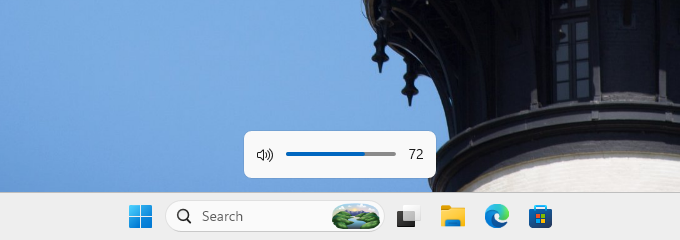
While building FlexFlyout, an app that shows the playing track when you press the volume keys, I ran into an obvious problem: the Windows volume indicator still popped up as well, so there were two of them on screen. Windows has no official way to turn that indicator off. So I read the code and commit history of other apps that deal with it (FluentFlyout, Bolume, Modern Flyouts and others), and checked what I found on the latest Windows 11 release (26H2). Here are my notes.
Short answer (if you just want it gone or moved)
- To move it, use Windows Settings
- Settings > System > Notifications > “Indicators from keyboard actions” (at the bottom) > “Position of on-screen indicators”
- You get three choices: “Bottom center” (the default), “Top left” and “Top center”. The brightness and other indicators move with it
- This is a fairly new setting (it was tested in Insider builds in 2025), so some versions of Windows 11 may not have it

- To hide only the volume indicator, use the Windhawk mod “On-Screen Indicator Position” (version 1.6.0 or later)
- It lets you pick “Hidden” for each kind of indicator. As far as I know, this is currently the only way to hide the volume indicator while keeping brightness and the others
- Apps can hide it too (FluentFlyout, Bolume, FlexFlyout and others)
- That’s easy, but the brightness, airplane mode and similar indicators disappear along with it (the reason is below)
- All of these rely on undocumented parts of Windows, so a Windows update can break any of them
Where I checked
- Windows 11 Enterprise Evaluation 26H2 (build 26300.9457), in a virtual machine
- The other apps’ code as of their default branches on 2026-11-01 (I rechecked FluentFlyout and the Windhawk mod for changes on 2026-11-11)
- I did not check 22H2–24H2 myself; what I say about them comes from reading the other apps’ code
What the volume indicator really is
- On Windows 11, the volume, brightness, airplane mode, camera, microphone and similar indicators are drawn by
Windows.Internal.HardwareConfirmator.dll, which Explorer loads- There is a separate function for each kind (
ShowVolumeAsync,ShowBrightnessAsyncand so on)
- There is a separate function for each kind (
- But all of them share a single window
- So if you hide that window from outside, the brightness and other indicators go with it. That’s why hiding it with an app also hides brightness
- The window is a top-level
XamlExplorerHostIslandWindowowned by Explorer- It stays around while hidden, grows and shows itself when you press a volume key, and hides again after 2–4 seconds
- The window doesn’t exist until the indicator has been shown once after you sign in
On the 26H2 virtual machine, I read the window’s state before and after pressing a volume key. The script only reads; it doesn’t touch Explorer. The screen was 1280×800, and the output below is trimmed and reformatted.
=== before the key press
hwnd=0x3035A proc=explorer visible=False band=18 size=169x61 exstyle=0x08200088 children=none
=== about 0.3 s after
hwnd=0x3035A proc=explorer visible=True  band=18 size=234x62 exstyle=0x08200088 children=none
=== about 3.8 s after
hwnd=0x3035A proc=explorer visible=False band=18 size=169x61 exstyle=0x08200088 children=nonebandis the window’s z-order band. 18 isZBID_ABOVELOCK_UX(above the lock screen), which you can read with the undocumentedGetWindowBandexstylewasWS_EX_NOACTIVATE | WS_EX_NOREDIRECTIONBITMAP | WS_EX_TOOLWINDOW | WS_EX_TOPMOST
It keeps changing between releases
- Windows 10 and Windows 11 21H2: it was a
DirectUIHWNDunder aNativeHWNDHost- This changed in 22H2, and Modern Flyouts could no longer hide the indicator (#920)
- 22H2–24H2: the
XamlExplorerHostIslandWindowapparently had aWindows.UI.Composition.DesktopWindowContentBridgechild with aWindows.UI.Input.InputSite.WindowClassgrandchild- FluentFlyout and HideVolumeOSD look for the window through that child and grandchild
- 26H2: there is no child or grandchild window
- A search that requires them finds nothing (I haven’t tested FluentFlyout itself on 26H2)
- What does work is “an Explorer window in band 18 that is small”. Modern Flyouts told the window apart by its band, and the Windhawk mods by its size
Three ways to hide it
| Approach | Used by | How | Downside |
|---|---|---|---|
| Move it off screen | FluentFlyout | While its own panel is up, make the window click-through, move it off screen and minimize it. Put it back when the panel closes | If it isn’t put back, brightness and the other indicators stop showing too |
| Empty its visible region | Bolume | Set an empty region on the window with SetWindowRgn. Even when Explorer shows the window again, nothing inside it is visible | The region can be reset, so you need something that sets it again. Brightness and the others disappear too |
| Stop it inside Explorer | Windhawk mods | Hook into Explorer and intercept the functions that show the indicator, or ShowWindow and friends | Needs Windhawk. Function names can change with Windows updates |
- Only the inside-Explorer approach can stop one kind of indicator and not the others. The two outside approaches always take brightness and the rest along
- Bolume checks every 250 ms and sets the region again in case it was reset. FlexFlyout instead sets it again whenever it’s told the window was shown (see below)
Finding the window
This is how FlexFlyout recognizes it (Rust, with the windows crate):
/// Whether `hwnd` is Explorer's volume indicator window.
fn is_indicator(hwnd: HWND) -> bool {
    // The class name must be XamlExplorerHostIslandWindow.
    if class_name(hwnd) != "XamlExplorerHostIslandWindow" {
        return false;
    }
    // It must belong to Explorer (the same process as the desktop's shell window).
    let (mut owner, mut shell) = (0u32, 0u32);
    unsafe {
        GetWindowThreadProcessId(hwnd, Some(&mut owner));
        GetWindowThreadProcessId(GetShellWindow(), Some(&mut shell));
    }
    if owner == 0 || owner != shell {
        return false;
    }
    // Band 18 (ZBID_ABOVELOCK_UX), where GetWindowBand exists.
    if let Some(band) = window_band(hwnd) && band != 18 {
        return false;
    }
    // Small, to skip other windows of the same class (under 700×250, like the Windhawk mods).
    window_rect(hwnd).is_some_and(|r| {
        (1..700).contains(&r.width()) && (1..250).contains(&r.height())
    })
}GetWindowBandis an undocumented export ofuser32.dll, so it’s looked up withGetProcAddress- Explorer can have other windows of the same class (zero-sized ones, the virtual desktop switch popup and so on), so the class name alone isn’t enough
Pitfalls
- When walking windows with
FindWindowEx, pass the previous result as the starting point- Otherwise you get the same window back forever. FluentFlyout once kept a CPU core busy this way whenever the first candidate wasn’t the indicator (fixed in d2a2978)
let mut after = None;
while let Ok(hwnd) =
    unsafe { FindWindowExW(None, after, w!("XamlExplorerHostIslandWindow"), None) }
{
    if is_indicator(hwnd) {
        found.push(hwnd);
    }
    after = Some(hwnd); // continue the search after this window
}
- Otherwise you get the same window back forever. FluentFlyout once kept a CPU core busy this way whenever the first candidate wasn’t the indicator (fixed in d2a2978)
- Don’t use
SW_MINIMIZEorSW_RESTOREon Explorer’s window- The app in front loses focus. Use
SW_SHOWMINNOACTIVEandSW_SHOWNOACTIVATEinstead (FluentFlyout’s f54e8b4)
- The app in front loses focus. Use
- Leave it hidden, and brightness won’t show either
- It’s the same window. FluentFlyout now puts it back every time its panel closes (a8b0669)
- If the app crashes while the region is empty, the indicator stays hidden
- A region set with
SetWindowRgnoutlives the process that set it. On the virtual machine, after the script that emptied the region had exited, pressing a volume key still showed nothing - Restarting Explorer brought it back: Explorer created a new window (with a different handle) without the region
- So that a forced kill doesn’t leave the indicator gone for good, FlexFlyout also looks for an indicator window with an empty region at startup and removes the region
// If the region is empty (NULLREGION), remove it altogether.
let mut rect = RECT::default();
if unsafe { GetWindowRgnBox(hwnd, &mut rect) } == NULLREGION {
    unsafe { SetWindowRgn(hwnd, None, true) };
}
- A region set with
- Intercepting the volume keys isn’t enough to stop the indicator
- Media keys sent as HID “Consumer” reports don’t go through the low-level keyboard hook (
WH_KEYBOARD_LL), according to the comments in Bolume - Low-level hooks aren’t called while an elevated window is in front
- Some vendors’ drivers re-send the volume keys with
SendInput, so ignoring every injected key (LLKHF_INJECTED) makes those keyboards stop working with your app - It’s safer to also use volume change notifications (
IAudioEndpointVolumeCallback) as a trigger. Note that pressing a volume key at 0% or 100% doesn’t change the value, so no notification comes
- Media keys sent as HID “Consumer” reports don’t go through the low-level keyboard hook (
Keeping it and staying clear of it
- Instead of hiding the indicator, you can leave it alone and place your own window where it doesn’t overlap
SetWinEventHookwithEVENT_OBJECT_SHOWtells you when the window is shown, so there’s no need to poll// Install it on a thread with a message loop; the callback runs on that thread. let hook = unsafe { SetWinEventHook( EVENT_OBJECT_SHOW, EVENT_OBJECT_SHOW, None, Some(on_show), 0, 0, WINEVENT_OUTOFCONTEXT | WINEVENT_SKIPOWNPROCESS, ) };- In the callback, only handle
idObject == OBJID_WINDOWand windows that pass the check above - When the event arrives, the window may not have grown to its shown size yet, so FlexFlyout reads its position with
GetWindowRect200 ms later (SetTimer)
- In the callback, only handle
- Since this only reads and never touches Explorer, the worst a Windows update can do is make it stop reading the position, and the two windows overlap. Brightness and the other indicators aren’t affected, and there’s nothing to clean up after a crash
What FlexFlyout does
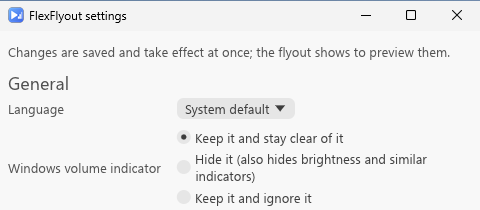
- The default is “Keep it and stay clear of it” (the approach just above)
- “Hide it” empties the region, and sets it again on every
EVENT_OBJECT_SHOW. The settings window says that this hides brightness and similar indicators too - The region is removed in four places: on normal exit, on panic, when the setting changes, and at the next start
- If you already use Windhawk, I’d recommend hiding only the volume indicator with On-Screen Indicator Position rather than having FlexFlyout hide it
Summary
- The Windows 11 volume indicator is a single window inside Explorer, shared with the brightness and airplane mode indicators. Hide it from outside, and they all go
- For now, the simplest options are Windows Settings to move it, and the Windhawk mod to hide only the volume indicator
- If an app has to touch it, assume a Windows update will change the window again, and make sure a break does no harm: only read by default, and always put back what you hid. The window has already changed in both 22H2 and 26H2